Showing posts with label Websites. Show all posts

Cool Websites and Tools – August 6th 2013 – Nuclear Fallouts, Hands-Free Mobile Answering, & Fake Media Coverage

Today in Cool Websites and Tools, we take a look at 5 cool websites, including viewing what a nuclear fallout would look like on your city or town, answering or rejecting calls on your Android phone without using your hands, moving files between cloud storage services, quickly finding what you need in your Gmail account, and faking press coverage for your startup. Read on below!

NukeMap 3D – the one big fear among world governments is that one day a terrorist will acquire a nuclear device and detonate it in a crowded place. So it is important to plan for such eventualities and estimate possible casualties in case of an attack. Using Google Maps, NukeMap 3D allows you to select a destination, size of nuclear device and then watch as the blast radius and casualty rate is calculated.

My image

Mover – Move files between any cloud storage provider. Backup anything to the cloud, including your cloud storage or website. Or are you moving from Dropbox to Box? Google Drive to SkyDrive? Using Mover, make the process much easier. Compatible with all major cloud storage platforms such as Dropbox, Google Drive, Skydrive and Box. Create and manage scheduled backups and view detailed logs.

My image

Mikey for Gmail – Find things quickly in your Gmail. Mikey gives you powerful tabs that make it easy to find whatever you are looking for. Trouble finding links? Mikey indexes all the content within the links you send and receive so you can search them. Can’t find an image? Browse all your images visually in a Pinterest-style layout.

My image

Startup Legitimizer – There are so many startups online these days that the vast majority of them struggle to get any kind of meaningful press attention. But when they get some good press, they instantly become credible to potential investors. So what do you do to give the illusion that your startup has been covered by the big names in media? Use the Startup Legitimizer.

My image

The Secrets Of Google Advanced Search: 5 Websites With Tips For You To Learn From

google-search-840x420

Just for fun, let me give you this exercise. Type in something that you want to search today. Use an experimental search engine like Million Short which removes the first million or so Google results from a regular search engine result page. It’s a neat search engine built on top of Google Search you can use to specify how much you want to remove. I bet you will still get quite a few results, and hopefully fresh ones. Making these serendipitous discoveries is the fun part of a search. Though quite often, the incredibly intelligent Google algorithm loses out to SEO practices that push unneeded websites and search results on top.

The Web is a maze and you need more than a few standard operators to wade through it. To come out successfully on the other end, you need to power search. Your weapon of choice – Google Advanced Search. The homepage itself has a lot of Google Search tools which we don’t use much, but if you want to get your hands dirty, you need to know the secrets of Google Advanced Search. Here are a few places where you can learn all about the inner workings of advanced search.

Google Inside Search

google-advanced-search01

Google Inside Search is the land of all search related knowledge. This is your launch pad if you want to teach someone the basics of Google Search. As the name indicates, it is a journey into the heart and soul of search, and thus it is meant to be a warm, friendly place which tries to give the impression that search is fun. And it succeeds because you just have to browse to the page with the search stories to see how people are using it daily. For instance, the story of Morgan is inspiring in how she uses search for education and learning independence above anything else; or, Caroline who discovered a supernova (one of the youngest people to do so) with the help of search. Very promotional on the part of Google, but it also reveals the potential of applying the right search methods for the right ends.

google-advanced-search02

Teaching someone the basic of how search works on the web is easier with the interactive How Search Works. If you are a teacher, you can browse through the lesson plans which Google has designed for the classroom. All lessons are leveled as – Beginner, Intermediate, and Advanced. All lessons are available under a Creative Commons CC-BY license.

Power Searching With Google

We started out with talk of advanced searching and to learn all the skills we head to a corner of the Inside Search site. The Advanced Power Searching course is a follow up to the Power Searching course, that’s available from the adjacent link on the same page. Both are self-paced courses you can learn on your own time. These are some of the best and condensed ways to become a power searcher in a relatively short time. The Advanced Power Searching course whets your curiosity a sample challenge – a video of a historic location on the rim of The Pacific. Your clues are a famous bridge (not revealed) and a park. Your job is to find that location using just Google Search.

Master searcher Daniel Russell takes you through the challenge, breaking it down into logical steps and using multiple Google Services to solve it. A major takeaway – don’t leap into search. Start broadly and then narrow down. It is beautifully explained and I can’t recommend it highly enough. Learn here and then take on the other challenges, graded from Easy to Hard. For instance, how about this one:

google-advanced-search04

SearchResearch


google-advanced-search03

We meet Daniel Russell again on his own personal blog. The self-described “anthropologist of search” works for Google and his insights on how to search with advanced search is as exciting as any “whodunit”. I first bumped into his blog when I came across an article where he described a perplexing situation (as shown in the above screenshot) and then explained the solution. I know I wouldn’t have got it on my own. It alone was a master-class in search tactics. His blog is filled with search challenges like these (how do you discover a book you don’t know the name of?) and little nuggets of information (e.g. how to open a YouTube video with a little URL modifier?).

Google Search Forum

google-advanced-search05

Google Search Forum is the corner shop where everyone who is interested comes to jive over operators, weird results, and everything else. Coffee isn’t served, but you will get more than your share of brain bytes. You will find people asking questions on search personalization, how to avoid biased results, how to search patents by images etc. There is lots of information here if you care to dig. The search engine on top is the thing to use if you want to avoid all that labor.

A Google A Day

google-advanced-search06

All that reading needs a bit of practice, and if you aren’t doing it with anything else, do it here and have a bit of fun. A Google A Day is part of the Inside Search Playground and its here you can test your search skills with daily riddles. Log in with Google+ and start playing. Solve the trivia questions, cheat openly with Google Search, and rack up the points. To get to the answer in the shortest time possible, you have to make efficient use of search operators, and this is where your skill will be tested. Google+ has retired its games, but you can go from one question to the next across the categories and rack up the points.

5 More Places To Help You Find Quality Creative Commons Images

find-images-840x420

Last year, we introduced you to five great places to find Creative Commons images, with the list including heavyweights like Flickr and Google Image Search, along with a few more services you might not have heard of. Today we’re updating that list, and adding 5 more services that take the hard work out of finding Creative Commons images.

There are lots of reasons you might need to find Creative Commons images – whether it’s for your blog or website, or for creating a poster, an ad, or more. No matter what reason you’re looking for Creative Commons images, make sure you’re familiar with the different Creative Commons licenses so you don’t misuse the images that have been shared with website visitors. If you need an introduction to Creative Commons, be sure to check out this post we had published quite a few years back on Creative Commons usage.

Creative Commons Search

The obvious place to start when searching for Creative Commons images is to go straight to the source. The official Creative Commons website has a search function that lets users search some pretty impressive websites for free-to-use images. Not only does this search function let you search specific websites for images, it also gives you access to Creative Commons music, media and video. For images, the search plugs into image websites like Flickr, Fotopedia, Open Clip Art Library, Wikimedia Commons (more on that later), Pixabay, Europeana, and SpinXPress.

CC-Search

When searching through the CC search, you can also search for images that can be used for commercial purposes, or that you can adapt, modify and build upon.

Yahoo Image Search

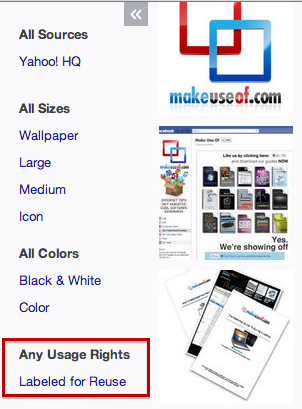
Yahoo Image Search recently introduced a functionality similar to how Google makes it easy to find Creative Commons content. To find CC images, just perform a search on Yahoo Image Search, and then pull up the menu on the left side of the screen. (If it’s collapsed, just hit the arrow button to expand the menu.

Yahoo-1

Click ‘Show Filters’ and select ‘Labeled for Reuse.’
Yahoo-2

Stock.Xchng

Stock.Xchng (or SXC) is a user-powered site where photographers upload images allowing visitors to use them, under various licenses. With SXC, you should always be sure to take a close look at ‘Usage Options’ for each image as different photographers may very well have different restrictions or requirements that allow you to use their images. For example, some photographers request that they are notified before or when the image is used. Out of respect for the photographers who are sharing their work for free, be sure to adhere to their requests.

sxc

SXC has a very impressive collection of photos, some of which differ little from a professional stock website, so it’s definitely a good place to start when looking for solid photos.

Wikimedia Commons

While you can search for Creative Commons images on Wikimedia Commons through the official CC site, it’s a site that certainly deserves a special mention. The site gives users access to a variety of free-to-use images, maps and more. If you’re looking for historical images that are free-to-use, this is the site to go to. In addition to images, you can also search the site for video and audio files that you can use.

Wikimedia

A lot of the images on Wikimedia have either been shared by photographers, while you’ll also find a lot of public domain images that are free to use because their copyright has expired.

Compfight

While we already know we can find great Creative Commons images on Flickr, an even better way to do that is by using the website Compfight. The site offers users a slick alternative on finding images you can re-use on your website or blog. While Compfight lets you search Flickr images with any license, you can narrow down your search results by two main licenses: a basic Creative Commons license or a commercial license. If your website has ads, or you plan on using the photo for any sort of monetary gain, be sure to select the commercial license, otherwise you can stick with the Creative Commons license.

Compfight

Compfight is great, not only because it displays the images beautifully, it is also able to present users with search results that are made up of pretty impressive photos. The quality of the images you’ll find on Compfight is simply impressive.

What sites would you add to this list? Do you contribute to the wealth of Creative Commons yourself? Let us know in the comments.

Cool Websites and Tools – August 5th – Like Buttons, Chess, Urinals, & Maildrops

Today in Cool Websites and Tools, we take a look at 5 cool websites, including adding a like button to your website, a smart and beautiful chess game for the iPhone, reading to your child via the iPad, deciding what men’s urinal to use, and setting up a disposable address to protect your real address from spam. Read on below!

LikeBtn – allows you to add a Like Button to your website with just a few lines of code. Instead of the many social network like buttons which are normally scattered across blog posts, you can use the code provided by this website to embed a small like / dislike button on your posts, and if the person chooses “like”, they then have the option to promote the post on social media.

My image

Tall Chess – There are a lot of chess games for iOS but many of them have too many unnecessary elements which take up valuable screen estate at the expense of the most important thing of all – the board and the gameplay. Tall Chess is another chess game for iOS which takes up ALL of the screen with the board, and nothing else. Beautiful pieces and colored boards, and upgrade to play multiple games at once.

My image

Kindoma – Sometimes it is difficult for parents to spend quality time with their children, due to their work schedules and other commitments. This is where Kindoma comes in, if you have an iPad. The app allows a parent to read a story to a child through the app, with the iPad camera showing both mother and child in the top left and right of the screen.

My image

Urinal Man – is a very strange “learning urinal simulator” where you are given 6 test questions. Each question shows a line of male urinals with men standing at various ones, and you are asked which one you would likely go to, if you were there. You are then rated according to previous answers from other people, and at the end, given a grade. It’s not entirely clear what the grade is for, but the site is nevertheless amusing as a social experiment.

My image

Maildrop – Quite often you are asked for your email address when signing up for something online, whether it be a website login, a competition, online shopping or more. But maybe you don’t entirely trust the website with your email address? Then use Maildrop. This site gives you a disposable email address which you can use to disguise your real address. Spam is blocked on Maildrop so you can be assured of only receiving your genuine emails.

My image

Cool Websites and Tools – August 4th – Hotel Room Guests, Medical Images and Windmaps

Today in Cool Websites and Tools, we take a look at 5 cool websites, including saving some money by sharing your hotel room with a fellow traveller, a crowdsourced medical library, a wind map of the US, a fitness app that gives you real-time updating information and customized screenshots of smartphone images. Read on below!

Easynest – Hotels charge per room which means that if you are a solo traveller, you pay the same price as a couple would. Easynest offers a simple proposal. Sign up on their site and when you next stay in a hotel alone, share your room with another solo traveller and split the costs 50-50. That way, you get to enjoy the luxury of a nice hotel and only pay half the price – and make a new friend (hopefully).

My image

Figure 1 – is a crowdsourced medical image library iPhone app for healthcare professionals, currently only available in the USA. The app provides the ability to remove all identifying features so the patient can’t be identified and they also provide a consent form for patients to agree for their images to be uploaded to the site. Licensed doctors can be verified so you can be sure the information is correct.

My image

Wind Map – Wind flows around us all the time but where is it exactly and in what direction is it going in? In the case of the US, check out Wind Map which is an interactive map of the US, showing the wind patterns and directions, as well as what speeds they are going at. The site stresses it is a personal project therefore the data cannot be 100% guaranteed, even though great care has been taken to ensure accuracy.

My image

Runkeeper – is an iPhone and Android app that makes tracking your workouts fun, social, and easy to understand so that you can improve the quality of your fitness. The app tells you how many miles / kilometres you have walked /ran, as well as give you other real-time information, such as calories burnt, your average speed per minute and more. Publish your progress to your Facebook timeline for everyone to see.

My image

PlaceIt – Are you a blogger or journalist needing a customized screenshot of a smartphone device? With PlaceIt, you can choose between a variety of phones and tablets and then have your photos uploaded and inserted into the screens of the devices. Then when you have the screenshot you need, simply download the image to your computer for use in your blog posts and articles.

My image

Cool Websites & Apps July 31st 2013 – Coverbud Facebook Photos & Driving Test Exam

muoToday in Cool Websites and Tools, we take a look at 5 cool websites, including customizing your Facebook timeline with a high resolution cover picture, reviewing past driving exam papers to give you the edge in your own test, a place to try out programming languages with minimal setup and much more. Read on below!


Metronome – The Metronome has come full circle with this free online version from the guys at 123. Find the tempo and boost your rhythmic state with a real metronome. Choose from a wide range of BPM’s, patterns and beats right here to find the groove. From hand claps to 808 drum and snare, musicians are sure to make use of this fine tool. Whether you’re a guitarist, drummer or singer, this app is a big help.

My image


Coverbud – Coverbud allows you to create unique and personal cover photos for your Facebook timeline. You can personalize any cover you see on the homepage with your own photos, text, and colors. Simply authorise Coverbud to access your Facebook account, choose a design from the site, customize it to your liking, then Coverbud will publish it to your timeline. Quick, easy, and simple. Each cover photo is a high resolution image and looks great.

My image


Bazqux Reader – Are you one of the Google Reader refugees looking for a suitable replacement reader? Then look no further than Bazqux Reader. It shows blog posts and comments in one seamless stream, tracks what was read and displays only new discussions next time. Comments from Reddit, Livejournal, blogs with comment feeds, Disqus and Facebook widgets are supported. Unlike Google Reader however, Bazqux is a paid product, costing either $9 a year, $19 a year or $29 a year. All users get 30 days free.

My image


Driving Tests 101 – Your driving test is probably one of the biggest events of your life. Passing it will earn you your driving licence, and with that, a whole world of possibilities open up. So preparing for the test becomes extremely important, and like all test preparations, the best results will come from studying previous exam questions. This is what Driving Tests 101 is all about. Simply choose your country and province and the relevant tests will appear.

My image


CompileOnline – Just follow the simple steps to compile and execute any of your favorites programming languages online using your favorite browser and without having any setup on your local machine. Select the programming language you want to write, write it in the text editor provided, then click the button to see your output. It’s neat, tidy and free.

My image

USEFUL WEBSITES

  • ted.com - lectures by smart people
  • freerice.com - expand your vocabulary while feeding the hungry
  • qwikia.com - turn a Wikipedia article into a video
  • factsie.com - a place to learn amazing and unusual historical and scientific facts
  • padmapper.com - maps out possible apartments/homes that fit your criteria
  • zillow.com - another great source for finding your next home
  • privnote.com - write a note to someone that will self-destruct after they read it
  • freecycle.org - a network of people giving away free stuff in their towns
  • pipl.com - a search engine for finding people
  • govdeals.com - find cheap stuff the government is getting rid of
  • join.me - peek in on somebody’s computer screen
  • woorank.com - find out what your website is missing, how you can improve it, and how to make Google recognize it better
  • mapofthedead.com - shows places around you to help you survive the zombie apocalypse
  • seatguru.com - find out where the best seats are on your plane flight
  • unlistmy.info - find out which websites store data about you, and tell them to unlist your info
  • sizeasy.com - check the size of items you buy online
  • ninite.com - download all the free software you want at the same time
  • swole.me - plan out your meals better
  • amazon.com - the best place to buy things online
  • nophonetrees.com - talk to an actual person instead of a machine when you call customer service
  • loads.in - find out how long it takes websites to load

Entertainment - Music, Movies, Sports, Books

  • isitback.com - find out when your favorite television shows come back on air
  • literature-map.com - type in an author and they will show you others of a similar style
  • runpee.com - find out the best time to run to the bathroom during any movie
  • songkick.com - searches your music library and tells you when your favorite musicians play in your area
  • midomi.com - sing or hum a song you don’t the name of and it will identify it for you
  • iwl.com - find which famous writer your write like
  • theburninghouse.com - a blog cataloging which possessions people choose to save from a burning home