Showing posts with label Tools. Show all posts

Cool Websites and Tools – August 6th 2013 – Nuclear Fallouts, Hands-Free Mobile Answering, & Fake Media Coverage

Today in Cool Websites and Tools, we take a look at 5 cool websites, including viewing what a nuclear fallout would look like on your city or town, answering or rejecting calls on your Android phone without using your hands, moving files between cloud storage services, quickly finding what you need in your Gmail account, and faking press coverage for your startup. Read on below!

NukeMap 3D – the one big fear among world governments is that one day a terrorist will acquire a nuclear device and detonate it in a crowded place. So it is important to plan for such eventualities and estimate possible casualties in case of an attack. Using Google Maps, NukeMap 3D allows you to select a destination, size of nuclear device and then watch as the blast radius and casualty rate is calculated.

My image

Mover – Move files between any cloud storage provider. Backup anything to the cloud, including your cloud storage or website. Or are you moving from Dropbox to Box? Google Drive to SkyDrive? Using Mover, make the process much easier. Compatible with all major cloud storage platforms such as Dropbox, Google Drive, Skydrive and Box. Create and manage scheduled backups and view detailed logs.

My image

Mikey for Gmail – Find things quickly in your Gmail. Mikey gives you powerful tabs that make it easy to find whatever you are looking for. Trouble finding links? Mikey indexes all the content within the links you send and receive so you can search them. Can’t find an image? Browse all your images visually in a Pinterest-style layout.

My image

Startup Legitimizer – There are so many startups online these days that the vast majority of them struggle to get any kind of meaningful press attention. But when they get some good press, they instantly become credible to potential investors. So what do you do to give the illusion that your startup has been covered by the big names in media? Use the Startup Legitimizer.

My image

Power Up Your Mac Screen Captures With Share Bucket & popShot

PopShot_Bucket-840x420

Though OS X includes a default screenshot application, as a writer and blogger I use more than a few different programs, including Snagit, Snappyapp, and Clarify, for various purposes. But in the ever shifting world of digital applications, a new program can often trump and replace one or more similar programs.

This may be the case for Fliplab’s new screenshot application, Share Bucket, a free download from the Mac App Store, and another program called popShot (donationware). As screen capture applications, their features are pretty common, but they do include some rather useful sharing and file type options not easily available in the OS X’s image capture functionality.

Share Bucket

Share Bucket is similar to the paid application Snagit, and Evernote’s Skitch (Free) in that it allows you to both capture and annotate image captures. Its image editor also includes a drawing, arrow, line, box, text, and even a blur tool.

Share-Bucket

Share Bucket also allows you to crop images. But what makes it even more productive than Snagit is that it enables you to edit the default “Screen Shot…” file name and select a different output file type (.PNG, .JPG, .TIFF, and .PDF) right from within the editor.

Share-Bucket_file_type

Share Bucket includes other handy features for automatically uploading screenshots to Dropbox, Google Drive, or SkyDrive. So even if you already use one or more screen capture programs, Share Bucket could also be useful for quickly taking shots related to a special project where you want to store image captures in a particular place.

Share-Bucket_sharing

Share Bucket can be accessed from the menu bar, and as you might expect, it includes keyboard shortcuts for when you want to either capture and annotate a file in the editor, upload a file to a designated folder, or simply open the image editor. When you choose the Capture and Annotate option, Share Bucket will ask you upon importing a new file into the editor if you want to discard the previous capture. Some users may find this warning a little annoying, especially if using the editor multiple times a day.

Share-Bucket_

You can also drag and drop an image file onto the Share Bucket menu bar icon where it will be copied to your designated cloud service. If enabled, the application’s auto upload feature will even upload image captures taken by other applications. If you have a Retina display, you can select to have Share Bucket automatically scale those images. And you can also choose to have your saved files automatically deleted after a specified period of days.

Share Bucket doesn’t include many of the other annotation features of Snagit, nor does it include video capture. But for a free application, it offers sufficient tools and features for most users.

popShot

popShot is a clean, easy to use screen capture application that you also access from the menu bar or activate using assigned hotkeys. I keep popShot in my menu bar for when I want to shoot captures in .JPG, instead of the default .PNG file type of the OS X image capture application.
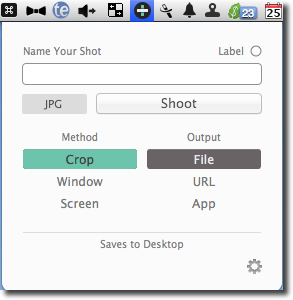
popshot_choices

You can not only preselect the filetype output for screenshots using popShot, but you can also select to have a shot open directly in an external application, like Photoshop or Preview. And if you want, you can actually name and label a screenshot before it is taken.

popShot makes it easy to change the path to where you want to save screenshots, which again is convenient for when working on a project where you may not want your screen captures to go directly to the desktop.

If you often need or want to share screenshots online, popShot can take and upload shots to its server, and then you select to share the URL or send the capture directly to Twitter, Facebook, Google+, Tumblr, or more than three hundred other sites. It would be nice, however, if you could share a screenshot to a designated account or stream without having to first open it in popShot.

popShot_share

popShot doesn’t include annotation tools or a built-in image editor, but if you take multiple screenshots per day for various purposes, it’s an app that you may want to have in your arsenal.

Final Thoughts

As someone who takes more than a dozen screenshots a day, I would suggest it really doesn’t hurt to have and use more than one screen capture application, especially if they can help you to be more productive. If you really want to take faster shots, I recommend using the finger gesture application BetterTouchTool to activate the hotkey of your favorite screen capture application, so you don’t have to remove your hand from the mouse or trackpad.

Download: Share Bucket (Free) / popShot (Free, donationware)

What do you use to take screenshots? Have you tried Share Bucket or popShot? Let us know what you think, in the comments below.

Cool Websites and Tools – August 5th – Like Buttons, Chess, Urinals, & Maildrops

Today in Cool Websites and Tools, we take a look at 5 cool websites, including adding a like button to your website, a smart and beautiful chess game for the iPhone, reading to your child via the iPad, deciding what men’s urinal to use, and setting up a disposable address to protect your real address from spam. Read on below!

LikeBtn – allows you to add a Like Button to your website with just a few lines of code. Instead of the many social network like buttons which are normally scattered across blog posts, you can use the code provided by this website to embed a small like / dislike button on your posts, and if the person chooses “like”, they then have the option to promote the post on social media.

My image

Tall Chess – There are a lot of chess games for iOS but many of them have too many unnecessary elements which take up valuable screen estate at the expense of the most important thing of all – the board and the gameplay. Tall Chess is another chess game for iOS which takes up ALL of the screen with the board, and nothing else. Beautiful pieces and colored boards, and upgrade to play multiple games at once.

My image

Kindoma – Sometimes it is difficult for parents to spend quality time with their children, due to their work schedules and other commitments. This is where Kindoma comes in, if you have an iPad. The app allows a parent to read a story to a child through the app, with the iPad camera showing both mother and child in the top left and right of the screen.

My image

Urinal Man – is a very strange “learning urinal simulator” where you are given 6 test questions. Each question shows a line of male urinals with men standing at various ones, and you are asked which one you would likely go to, if you were there. You are then rated according to previous answers from other people, and at the end, given a grade. It’s not entirely clear what the grade is for, but the site is nevertheless amusing as a social experiment.

My image

Maildrop – Quite often you are asked for your email address when signing up for something online, whether it be a website login, a competition, online shopping or more. But maybe you don’t entirely trust the website with your email address? Then use Maildrop. This site gives you a disposable email address which you can use to disguise your real address. Spam is blocked on Maildrop so you can be assured of only receiving your genuine emails.

My image

Cool Websites and Tools – August 4th – Hotel Room Guests, Medical Images and Windmaps

Today in Cool Websites and Tools, we take a look at 5 cool websites, including saving some money by sharing your hotel room with a fellow traveller, a crowdsourced medical library, a wind map of the US, a fitness app that gives you real-time updating information and customized screenshots of smartphone images. Read on below!

Easynest – Hotels charge per room which means that if you are a solo traveller, you pay the same price as a couple would. Easynest offers a simple proposal. Sign up on their site and when you next stay in a hotel alone, share your room with another solo traveller and split the costs 50-50. That way, you get to enjoy the luxury of a nice hotel and only pay half the price – and make a new friend (hopefully).

My image

Figure 1 – is a crowdsourced medical image library iPhone app for healthcare professionals, currently only available in the USA. The app provides the ability to remove all identifying features so the patient can’t be identified and they also provide a consent form for patients to agree for their images to be uploaded to the site. Licensed doctors can be verified so you can be sure the information is correct.

My image

Wind Map – Wind flows around us all the time but where is it exactly and in what direction is it going in? In the case of the US, check out Wind Map which is an interactive map of the US, showing the wind patterns and directions, as well as what speeds they are going at. The site stresses it is a personal project therefore the data cannot be 100% guaranteed, even though great care has been taken to ensure accuracy.

My image

Runkeeper – is an iPhone and Android app that makes tracking your workouts fun, social, and easy to understand so that you can improve the quality of your fitness. The app tells you how many miles / kilometres you have walked /ran, as well as give you other real-time information, such as calories burnt, your average speed per minute and more. Publish your progress to your Facebook timeline for everyone to see.

My image

PlaceIt – Are you a blogger or journalist needing a customized screenshot of a smartphone device? With PlaceIt, you can choose between a variety of phones and tablets and then have your photos uploaded and inserted into the screens of the devices. Then when you have the screenshot you need, simply download the image to your computer for use in your blog posts and articles.

My image